



Linking your Amazon account and payment

By using Amazon Pay, you can make purchases quickly and easily by using the shipping and payment information already registered in your Amazon account, without having to enter any new information.
■How to link your Amazon account
If you make a purchase using Amazon Pay, you can register as a new web member using your Amazon account details.
Additionally, customers who have already registered as web members can link their web member account with their Amazon account on their My Page.
■ For customers who are already members
How to link your WEB membership account with your Amazon account
If you already have a WEB member account, you can link it to your Amazon account by following the steps below.
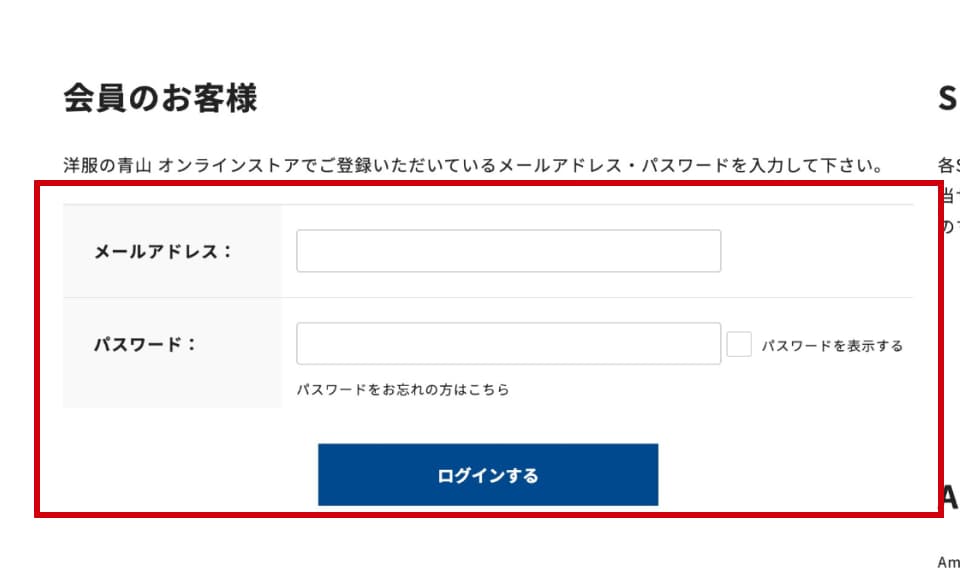
- STEP01
- Please log in by entering your web member email address and password.
*If the email address registered to your web membership is different from the email address registered to your Amazon account, a linking error will occur. Please be sure to change your membership email address to the same one as your Amazon account from your My Page before proceeding.
- STEP02
- Tap the "Link with Amazon account" button under "Account Link Management" on your My Page.
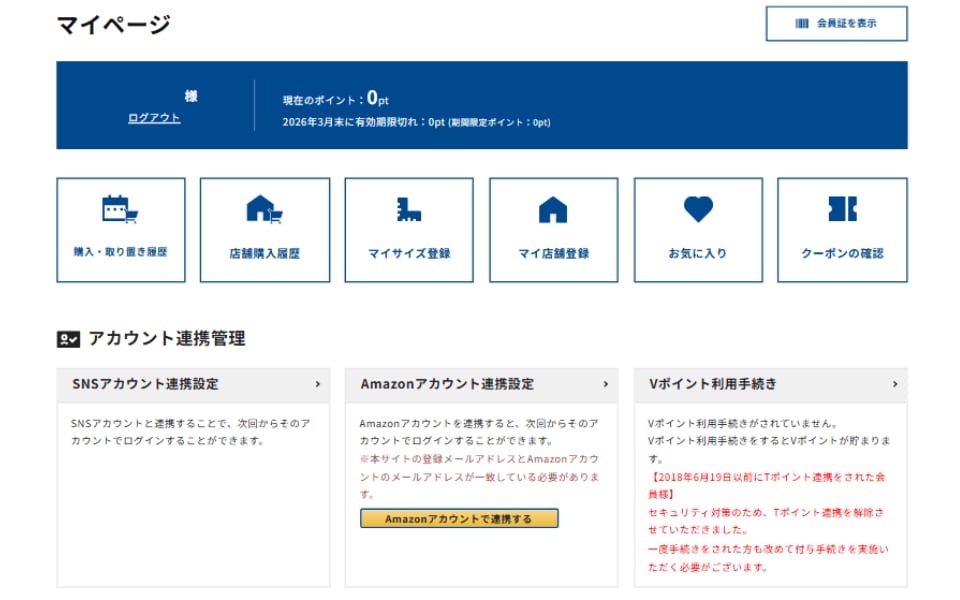
- STEP03
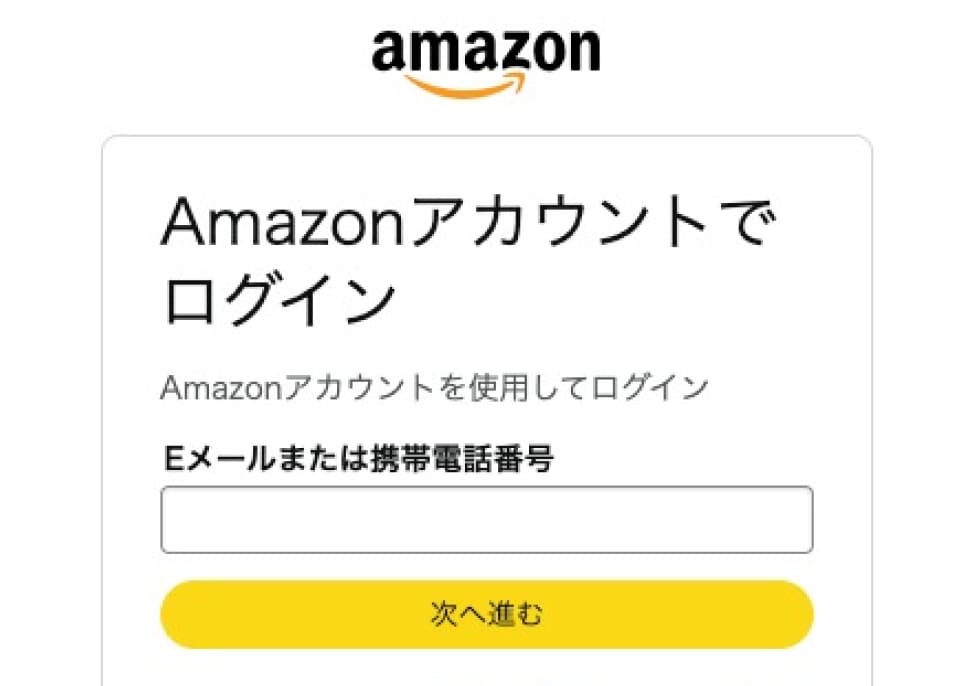
- The Amazon account login screen will be displayed. Enter the same email address as your web membership address to log in.
*Notes
*If you have previously registered as a web member using the email address you use for your Amazon account, a linking error will occur.
- STEP04
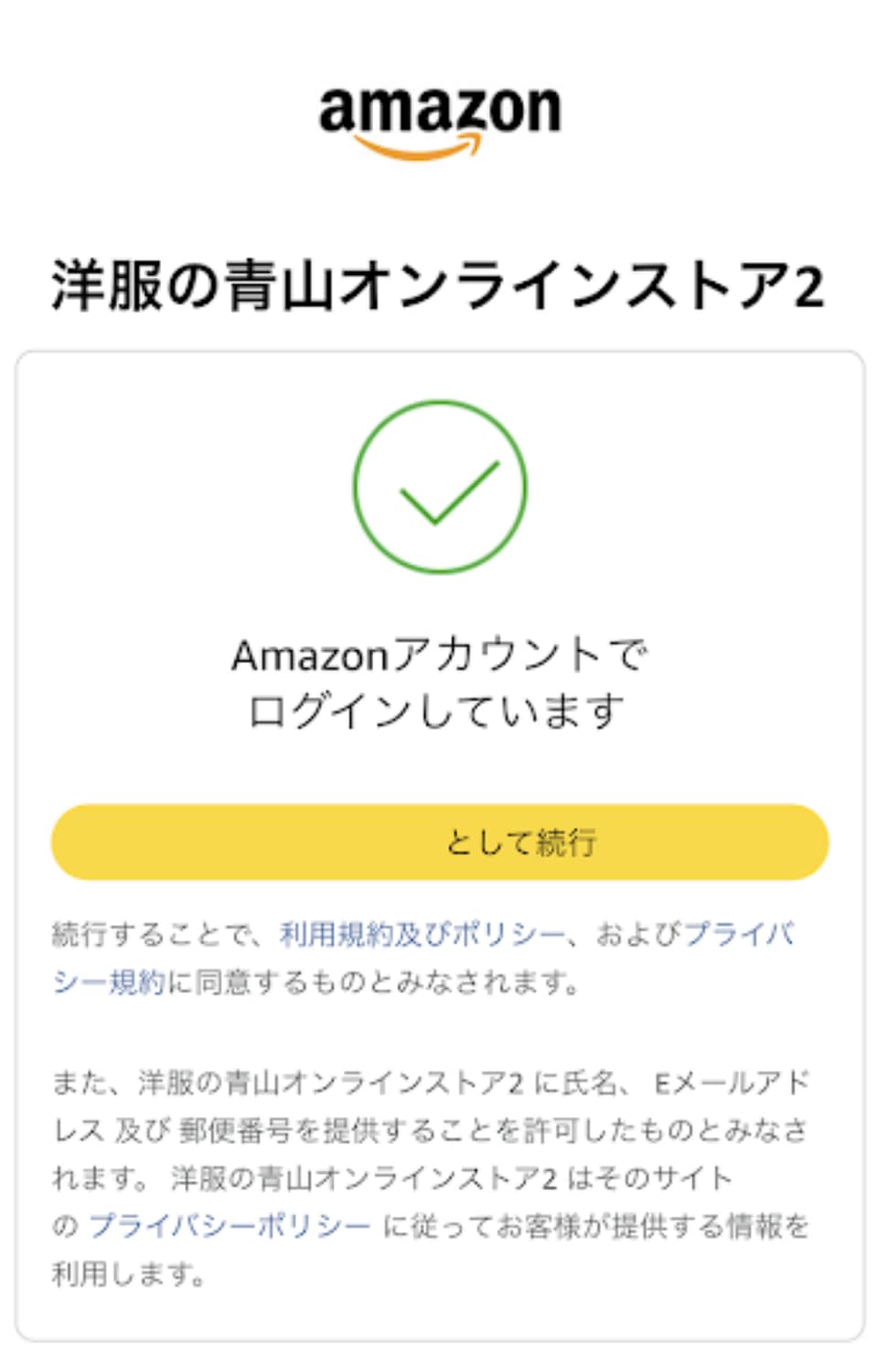
- You will be prompted to "Log in with your Amazon account," so tap "Continue."
- STEP05
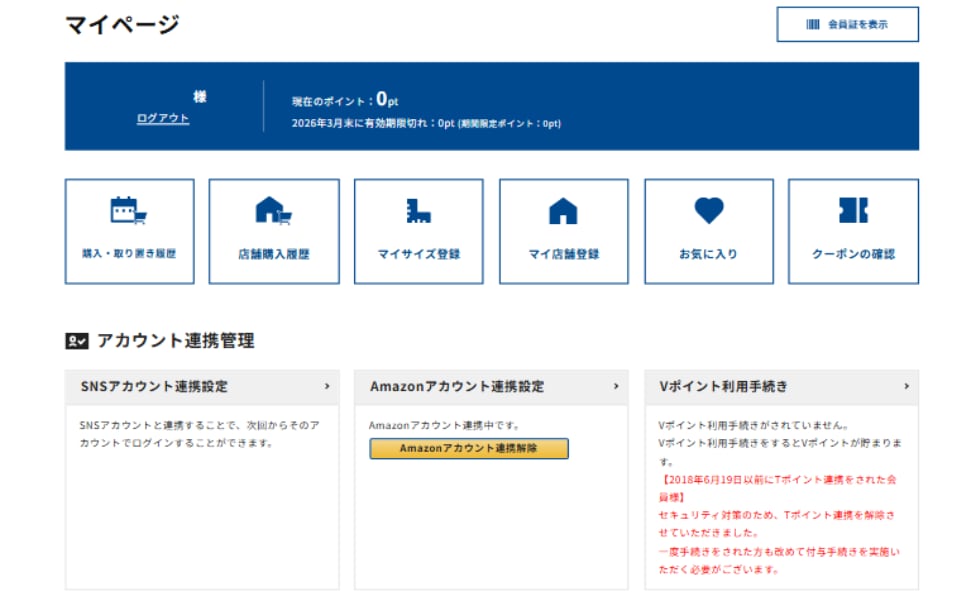
- Once your account is linked, you will be returned to your My Page. If "Unlink Amazon Account" is displayed in the "Account Linking Management" section, the linking is complete. From the next time onwards, you will be able to log in with your Amazon account.
■ Customers who have not yet registered as members
How to register as a new member using your Amazon account information
Even if you are not yet a registered WEB member, you can register as a WEB member at the same time as completing your purchase by using the information registered to your Amazon account.
- STEP01
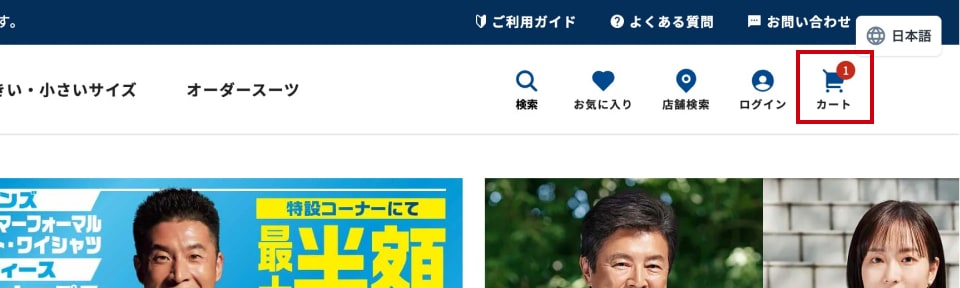
- After adding all the items you want to your cart, click "Cart" on the top right of the screen to check the items in your cart.
- STEP02
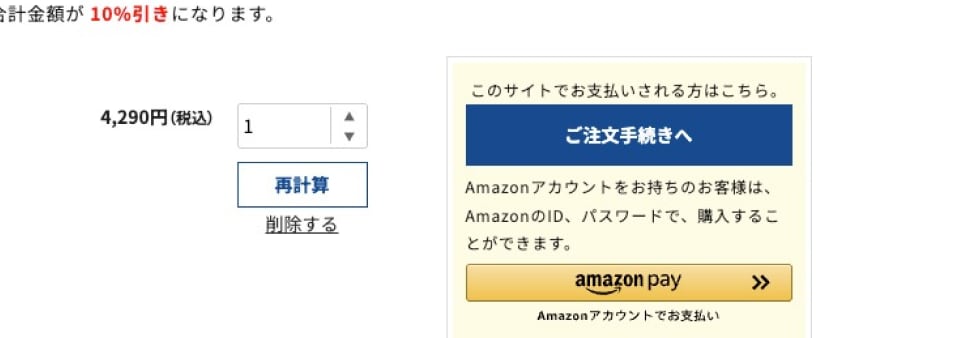
- Not logged inThen click the "Amazon Pay (Amazon Account)" button on the "Cart" page.
- STEP03
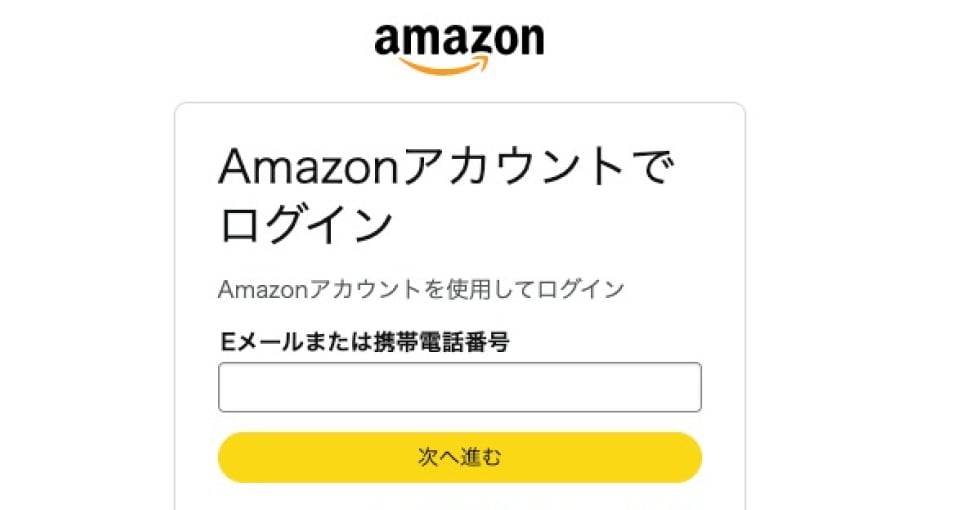
- The Amazon account login screen will be displayed.
Please enter your registered email address (same as your WEB member email address) and password to log in.
*Notes
If you have previously registered as a web member with the same email address you use for your Amazon account, a linking error will occur.
Please check the email address of your Amazon account before proceeding.
- STEP04
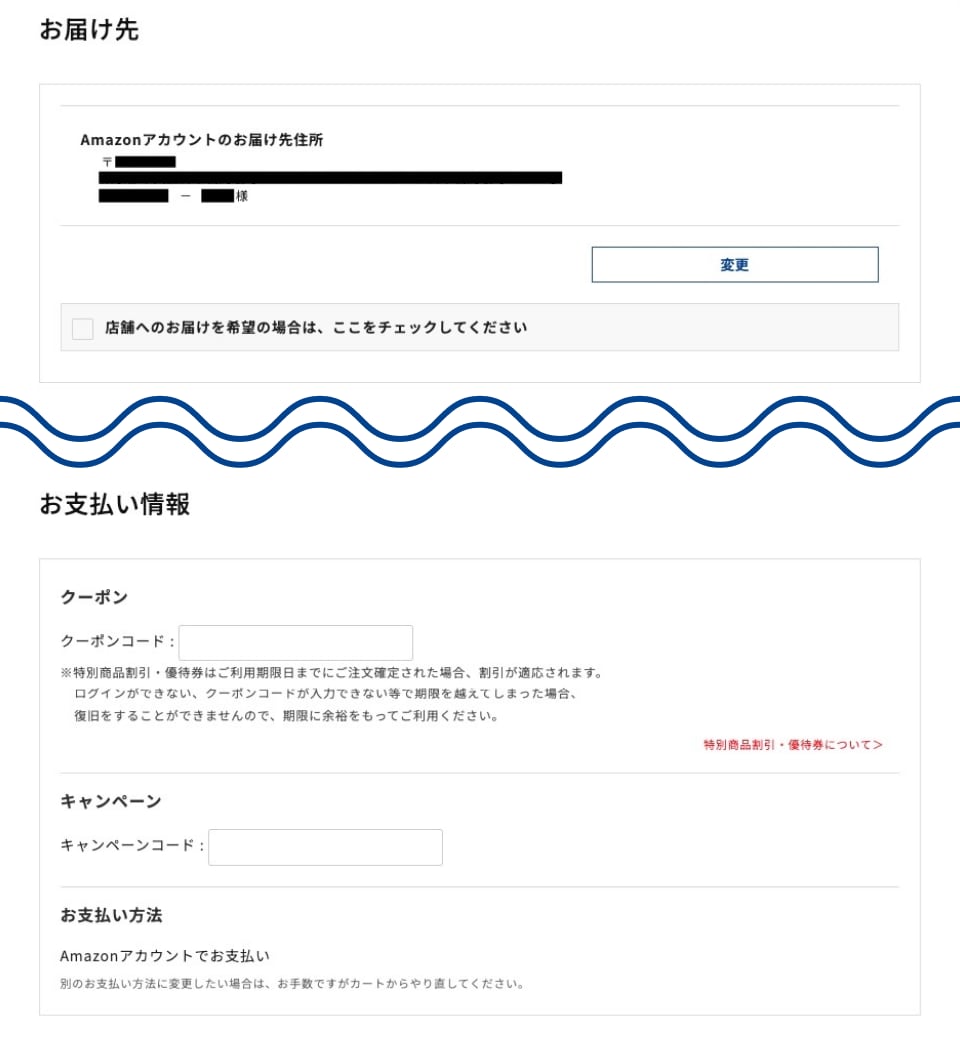
- The order confirmation/editing screen will be displayed.
The "Shipping address" will be automatically filled in with the information specified in your Amazon account, and the "Payment method" will be set to "Pay with Amazon account."
- STEP05
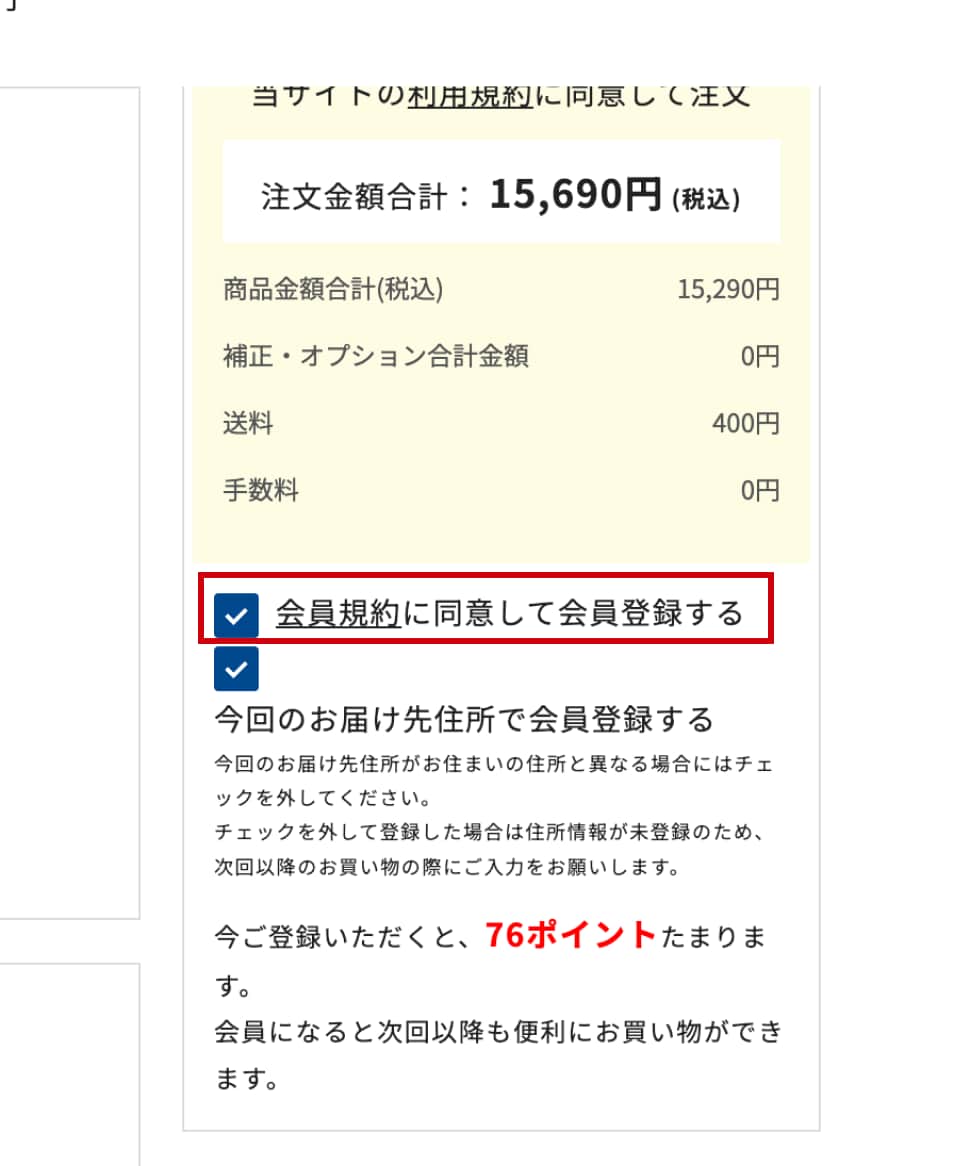
- If you wish to register as a new WEB member, please check "I agree to the membership terms and conditions and would like to register as a member."
If you check the box, you will be registered as a web member and will be able to log in with your Amazon account from the next time onwards.
- STEP06
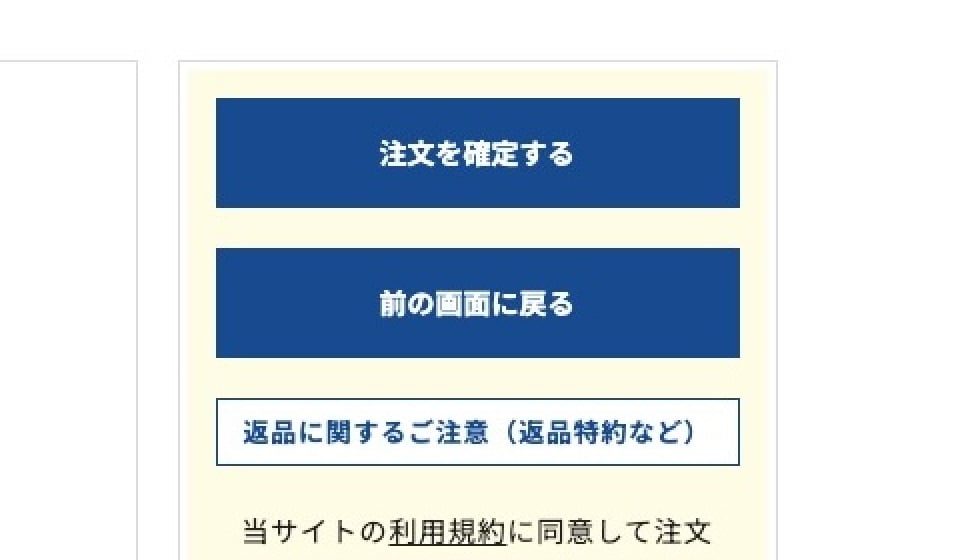
- Please check the details and click the "Confirm Order" button.
■Amazon Pay payment process
- STEP01
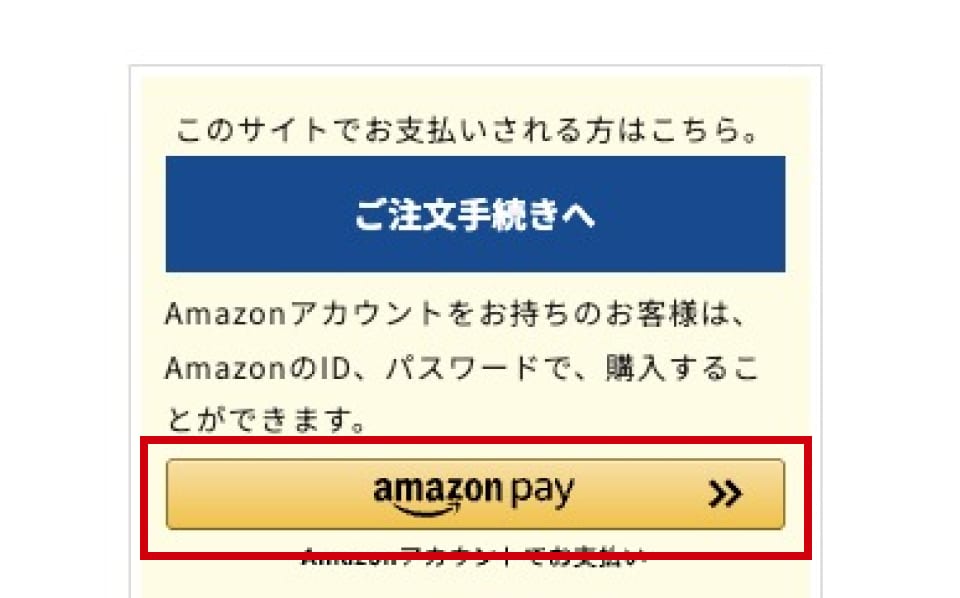
- Press the "Amazon Pay (Amazon Account)" button on the "Cart" page.
*If you are already a registered web member, please log in first.
- STEP02
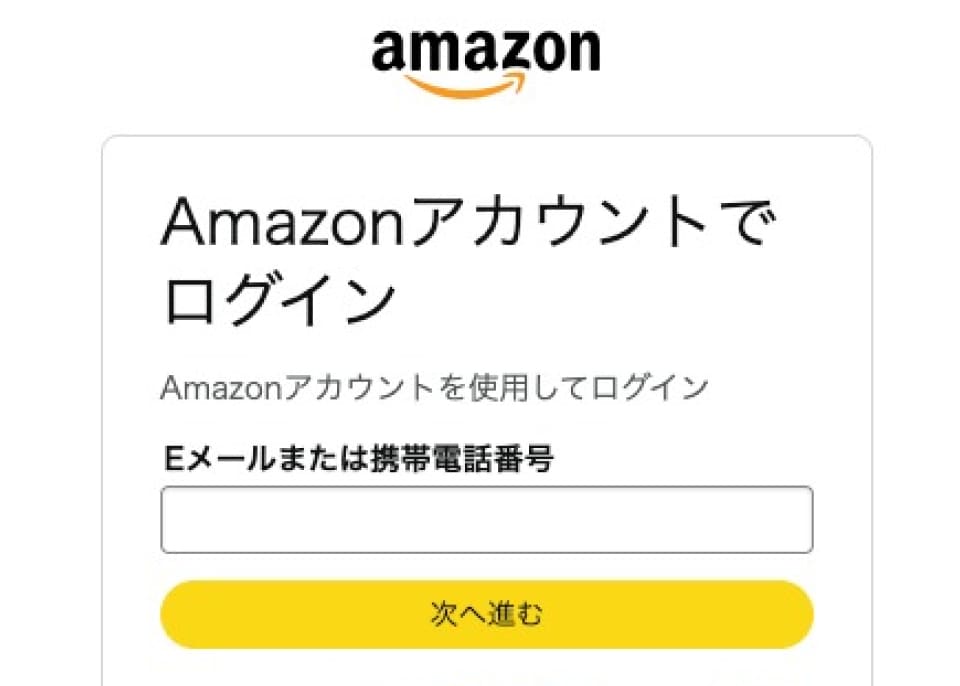
- The Amazon account login screen will be displayed.
Please enter your Amazon registered email address and password to log in.
- STEP03
- A screen for confirming or amending your order will be displayed, and the information specified in your Amazon account will be automatically filled in as the "Shipping address."
Also, "Payment method" is set to "Pay with Amazon account."
Please check the details and click the "Set and proceed to confirm your order" button.
*If you wish to change the delivery address, please change the delivery address by clicking "Change" where the address is displayed.

- STEP04
- Please confirm your order details and click the "Confirm Order" button.

■ Frequently Asked Questions
-
Can I use Amazon points or coupons?
No. You cannot use points or coupons that can be used on Amazon.
-
Will I receive Amazon points?
No. Amazon points will not be awarded.
-
I am a web member, will I receive AOYAMA points?
Yes. If you complete the Amazon account linking setup at the time of purchase, you will receive AOYAMA points.
-
Can I disconnect my currently linked Amazon account?
Select the "Unlink Amazon Account" button on your My Page to complete the unlinking process.
-
I get the message "This Amazon account cannot be linked because it is already linked to another account." What should I do?
If you see this message, it's possible that a new web membership account was automatically created when you made a payment with Amazon Pay in the past.
Please try reconnecting using the following steps:
① Log out once and select "Log in with Amazon" from the login page.
② Select the "Unlink Amazon Account" button on your My Page.
③ Log out again and log in with the web member email address and password you want to link to your Amazon account.
④ Select the "Link with Amazon account" button from "Account Link Management" on your My Page.